Circuit synthesis from Verilog and importing it to Cadence (based on UMC65nm Low-Leakage technology)

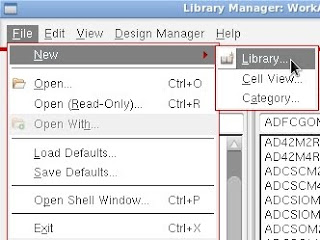
Once we finish Verilog programming, open Cadence Encounter $ module load ic/6.1.6 ius mmsim/12.1 assura/4.14_OA calibre/2012.2.17 rc/14.25 primetime/I edi incisive/13.1 pve/12.1 syndesign/I $ rc -gui At the command-line, load the technology library (UMC65LL in this case) :/> set_attribute library [location/library_file.lib] Then, use the following commands :/> read_hdl [verilog_file.v] :/> elaborate [entity name] :/> synthesize -to_mapped -effort high :/> generate_reports -outdir reports -tag mapped-incr :/> change_names -verilog :/> write_db -to_file design.db :/> write_design -gzip -basename design/mapped :/> write_hdl > design.v :/> write_sdc > design.sdc The generated file -- design.v will contain the logic gates and connections. This file will be imported to Cadence Virtuoso File -> Import -> Verilog Specify Target Library Name Reference Libraries - UMC65LL standard cell library Verilog Files To Import - ...